 Example Letterheads
 Example Letterheads

AddressWise can generate simple Letterheads for your Letters and Faxes.
1. The Letterhead Dialog
2. A Brief Tour of the Dialog
3. Default Letterheads
4. Setting the User Fields
5. Adding a Graphic
6. A Full Graphic Letterhead
7. Lines and Boxes
8. A Few Simple Rules
1. The Letterhead Dialog
All Letterheads are created using the same dialog and can be different for Letters and Faxes and between different User Profiles.
Shown is that for a Letter.

The Fax dialog only differs in the Title.
2. A Brief Tour of the Dialog
Starting at the top left and progressing to the bottom right, there are a number of sections and controls, that can be used to create and edit your Letterhead.
3. Default Letterheads
There are in fact two default Letterheads. One for the Letter and one for the Fax.
The default Letter Letterhead is shown.

The horizontal and vertical lines are the margins and column positions, as defined in Margins and Layout.
The Fax Letterhead does not contain as many fields.

Fields have been removed from this Letterhead, as the Fax contains these fields in other places.
The other main difference is that the Letterhead is shown in a different position. In the Letter this is defined in the Letter Layout and in the Fax it is fixed.
4. Setting the User Fields
As shown above, the main difference between the Letter and the Fax Letterhead is the number of User Fields shown.
These are set by the User Fields and Format button in the User Fields area of the Letterhead dialog.
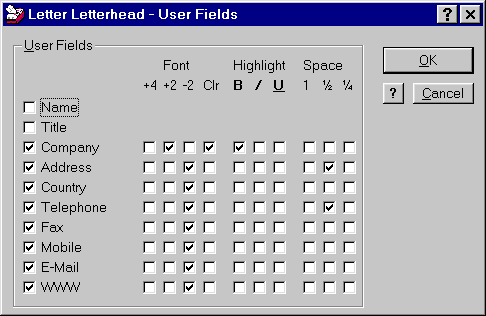
Set which User Fields are to be shown, by checking the boxes on the left and then adjust their format.
The boxes control the format as follows :-
Note how as the User Field boxes are checked and unchecked, the various format boxes appear and disappear.
In the example below, some fields have been removed, Company has been made larger and italic and some spaces have been changed.
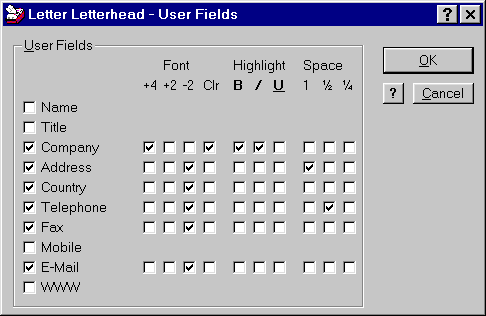
Part of the new Letterhead is now shown.
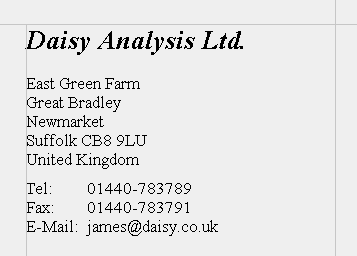
Experiment by adding and removing fields and changing their spacing and format.
5. Adding a Graphic
You can also add a graphic to the Letterhead, by clicking the Position and Format Graphic button.
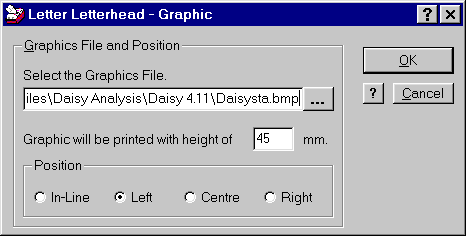
The new Letterhead is now shown.
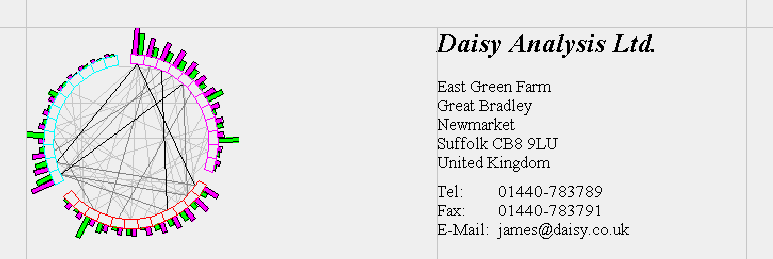
Note that the graphic comes from Daisy.
Note how the height is defined and the graphic is sized accordingly, keeping the same aspect ratio.
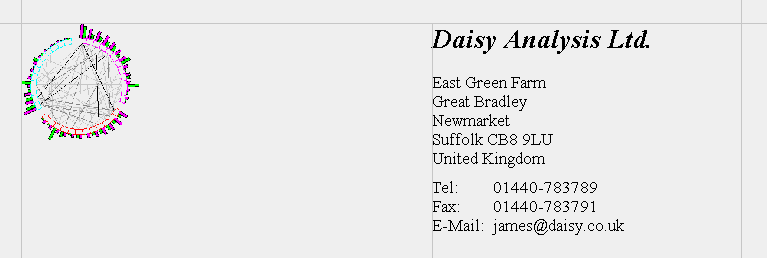
It has been reduced to 25 mm. here.
6. A Full Graphic Letterhead
In some cases, you may want to use a complete scanned image in a Letterhead.
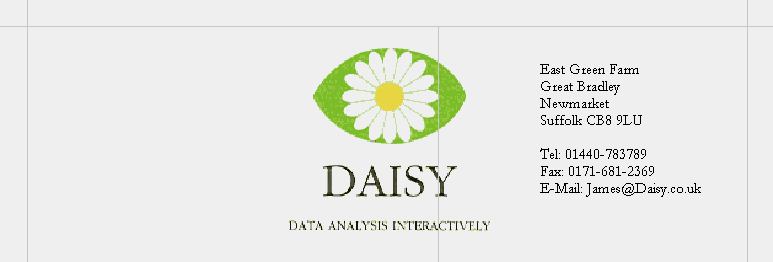
Here, a scanned version of the Daisy logo complete with address and phone/fax numbers has been assigned. Note how in this case a .gif fiole has been used and it has been centred on the page.
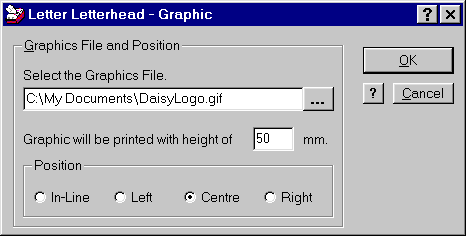
To complete the Letterhead, the User Fields are disabled, so that only the graphic will be shown.
7. Lines and Boxes
You can enhance the Letterhead using one of two lines or a box.
These are set in the Lines section of the dialog.
Check the line or box, you require and then click the Format Line or Format Box button to the right to set the style.
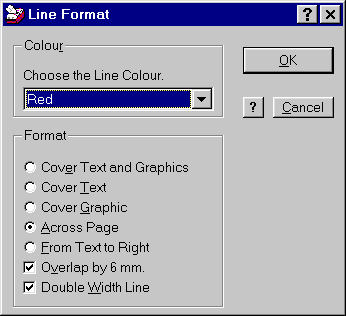
Adding a line above the address and formatting it as shown, results in the following Letterhead.

8. A Few Simple Rules
This note has shown how AddressWise can be used to generate simple Letterheads for yourself or your business.
If you can obtain something that you find is suitable using the standard options, with perhaps a company logo and a line or box, then that is the most effective way, as everything on the Letterhead will be directly generated and thus of a high quality.
Failing that, then use a scanned image of your Letterhead.
Note that Daisy Analysis use a program called WebGraphics Optimiser to optimise the palette and reduce the size of the resulting .gif file.
Copyright 1998 by
James Miller of Daisy Analysis